The usual first attempt at recording a call on a Mac is to record the microphone. It works for your own voice and fails for everyone else: if you wear headphones, the other people are never in the room for the microphone to hear, and if you use speakers, they arrive thin and echoey. The fix is to record the audio your Mac is playing as well as your microphone. That is what EchoPilot for Mac does, from the menu bar, with no bot in the call.
Why the microphone is not enough
A call has two sides. Your voice goes into the microphone. Everyone else’s voice comes out of your Mac as audio, through speakers or headphones. A recording that only listens to the microphone captures the first side well and the second side badly or not at all.
Recording the Mac’s own audio output captures the other side at source: the same audio you hear, before it reaches your ears. Mixed with your microphone, that is a complete recording of the call, whether you listen on speakers or headphones.
What you need
- macOS 13 or later to install and record your microphone.
- macOS 14.2 or later to record the meeting audio your Mac plays. On an older macOS, EchoPilot records the microphone only and says so on the panel.
- An EchoPilot account. Desktop recording is on Free and Pro, and uses the same meeting minutes as the phone app.
The Apple silicon and Intel downloads are on the download page.
Step by step
- Install and open EchoPilot. It lives in the menu bar rather than the Dock, so look for its icon at the top of the screen.
- Sign in.
- Start a recording from the panel. Recording only ever starts when you confirm it.
- Allow the microphone when macOS asks.
- Allow Screen Recording when macOS asks. macOS delivers the audio your Mac plays through this permission. EchoPilot records audio only, and never keeps a picture of your screen.
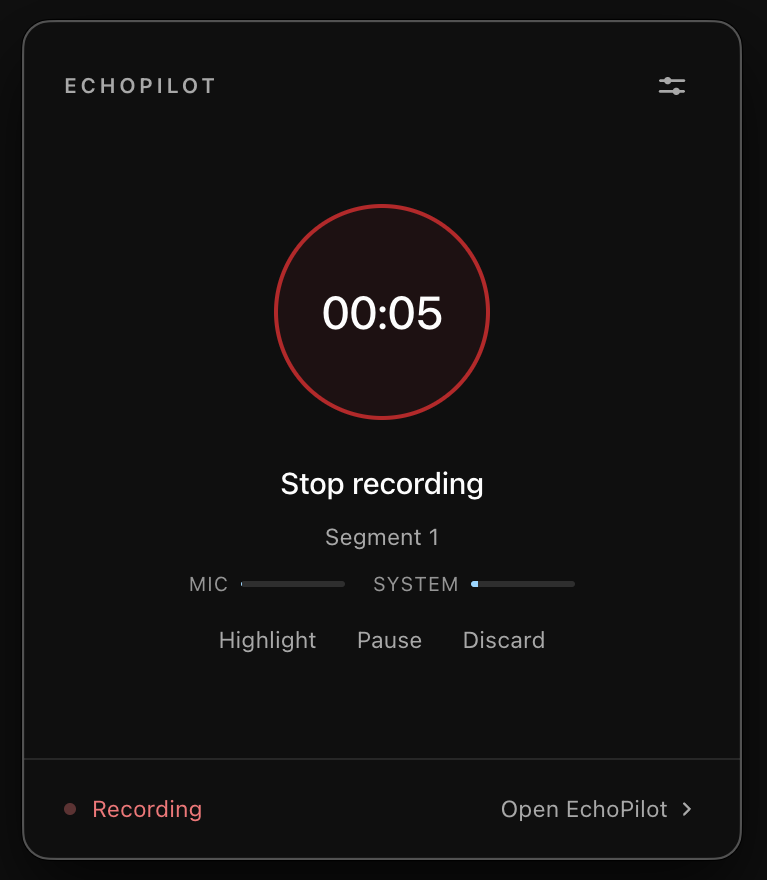
- Join your call as usual. The panel shows a level for your microphone and one for the meeting audio, so you can see both are coming through.
- Stop when the meeting ends. The minutes, transcript and action cards appear on your Mac, your phone and the web.
If you refused Screen Recording, the panel shows System audio access needed with a button that opens the right place in System Settings. Turn EchoPilot on there, reopen EchoPilot if macOS asks you to, and start a new recording.
macOS may also ask to use EchoPilot Safe Storage in your keychain. That is the app’s own encryption key for your sign-in and local recordings, not a request for your saved passwords.
During the call
- Nothing joins the meeting. There is no bot to invite and no extra device to buy.
- Highlight the moment from the panel or the menu bar when something important is said. It becomes a jump in the finished minutes.
- Long calls are safe. Audio is written to disk in encrypted segments as the call runs, so a crash or a restart costs seconds rather than the meeting, and a lost connection just means the upload happens later.
- Detection can remind you. EchoPilot can notice that you have joined a call and offer to record it. It offers; it never starts on its own. Choosing Record on the prompt starts the recording immediately.
Before you record anyone
Recording a call without a bot means nothing announces the recording for you. Tell the other people at the start and ask whether they are comfortable with it. The rules differ by country and state; the guide to meeting recording consent covers them.
On Windows
The same app runs on 64-bit Windows 10 or later, in the system tray, and records your microphone and the audio your PC plays in the same way. The Mac and Windows page covers both.