Record Google Meet calls. No bot in the call.
Google Meet runs in your browser, and EchoPilot for Mac and Windows records what your computer plays, with your microphone, so the whole call is captured and nothing is added to it. When you stop, the minutes, the transcript and the follow-ups are ready.
- Any browser on Mac or Windows
- No bot in the meeting
- No Workspace upgrade needed
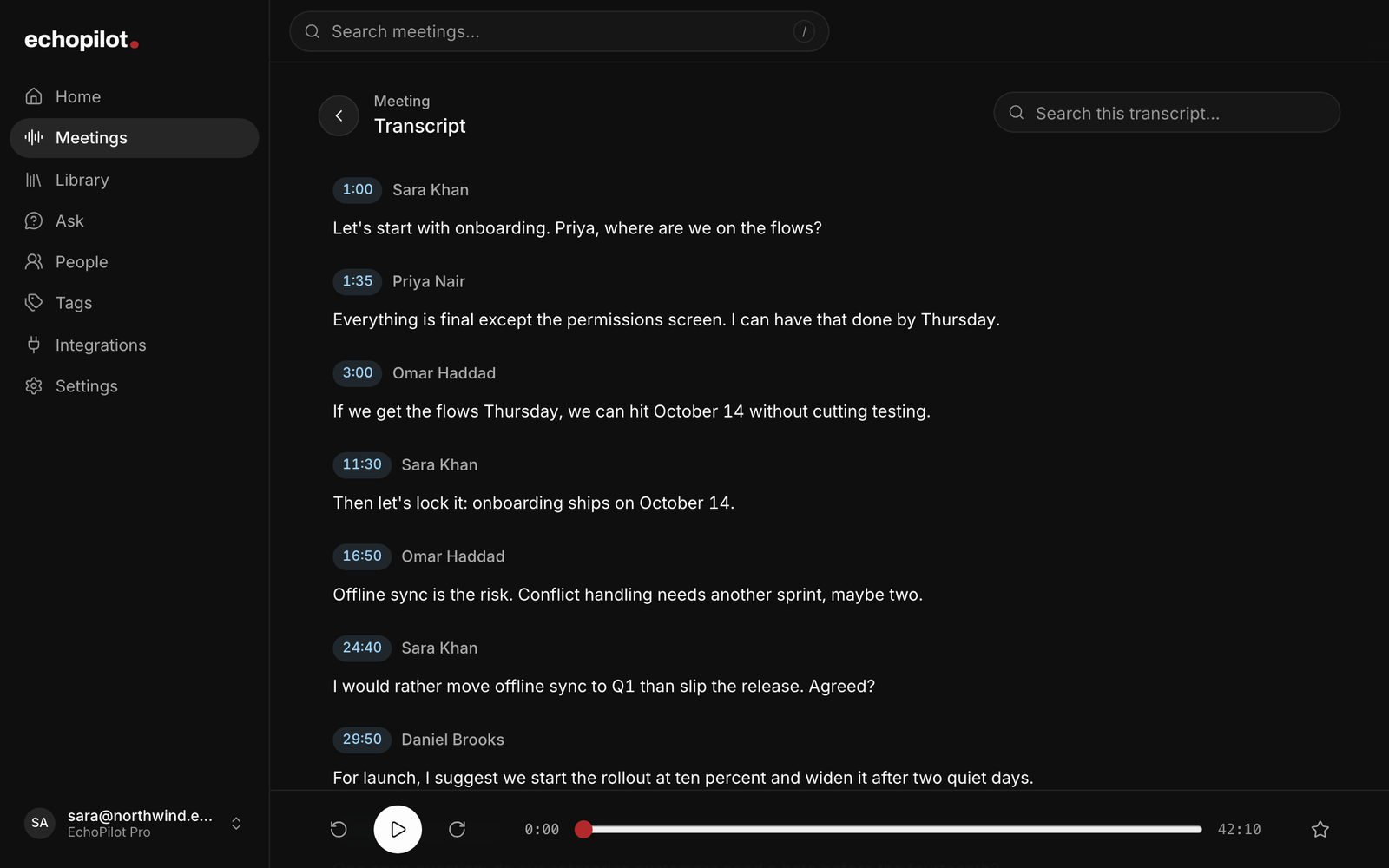
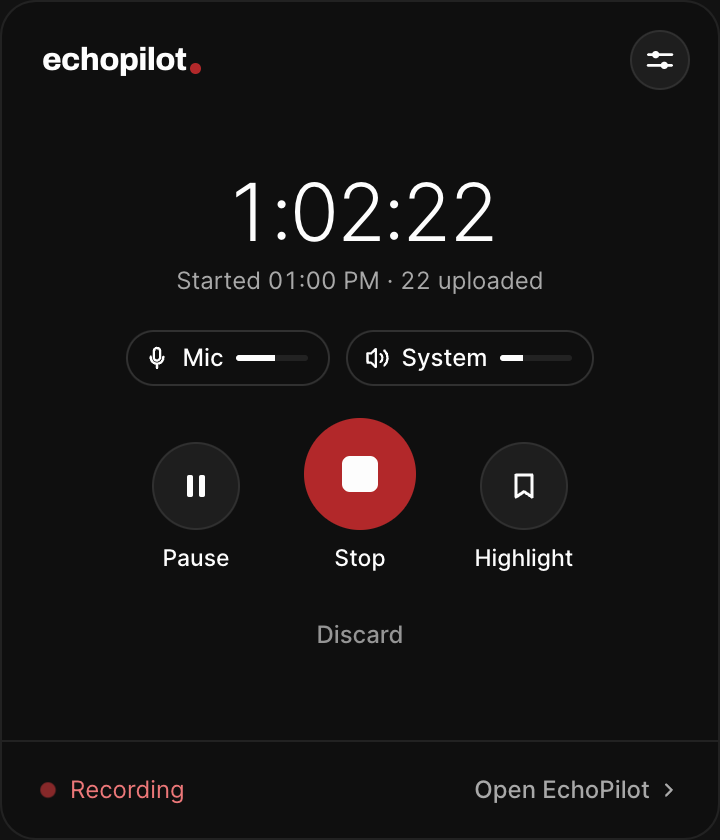
Any browser
Chrome, Edge, Safari or Firefox. EchoPilot records the sound your computer plays, so it does not matter where the tab is.
No bot to let in
Nothing joins the call and nothing waits in the lobby. EchoPilot records on your own computer.
The meeting, written up
The outcome, decisions, action items and a searchable transcript, ready when you stop.
Follow-ups in Google apps
Approve a card and the event goes to Google Calendar, the task to Google Tasks, or a note to Google Drive.
What it looks like
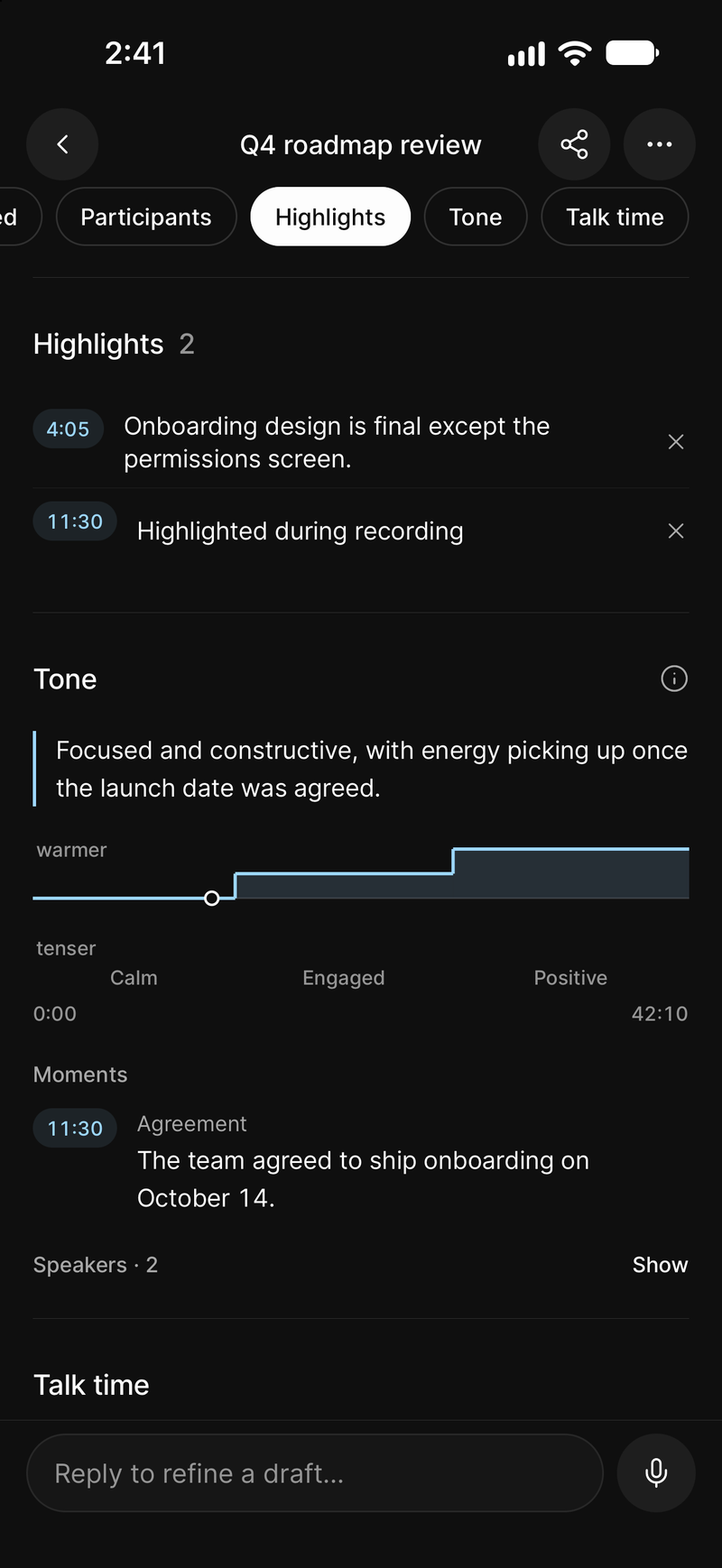
Highlights you marked, and the tone of the call
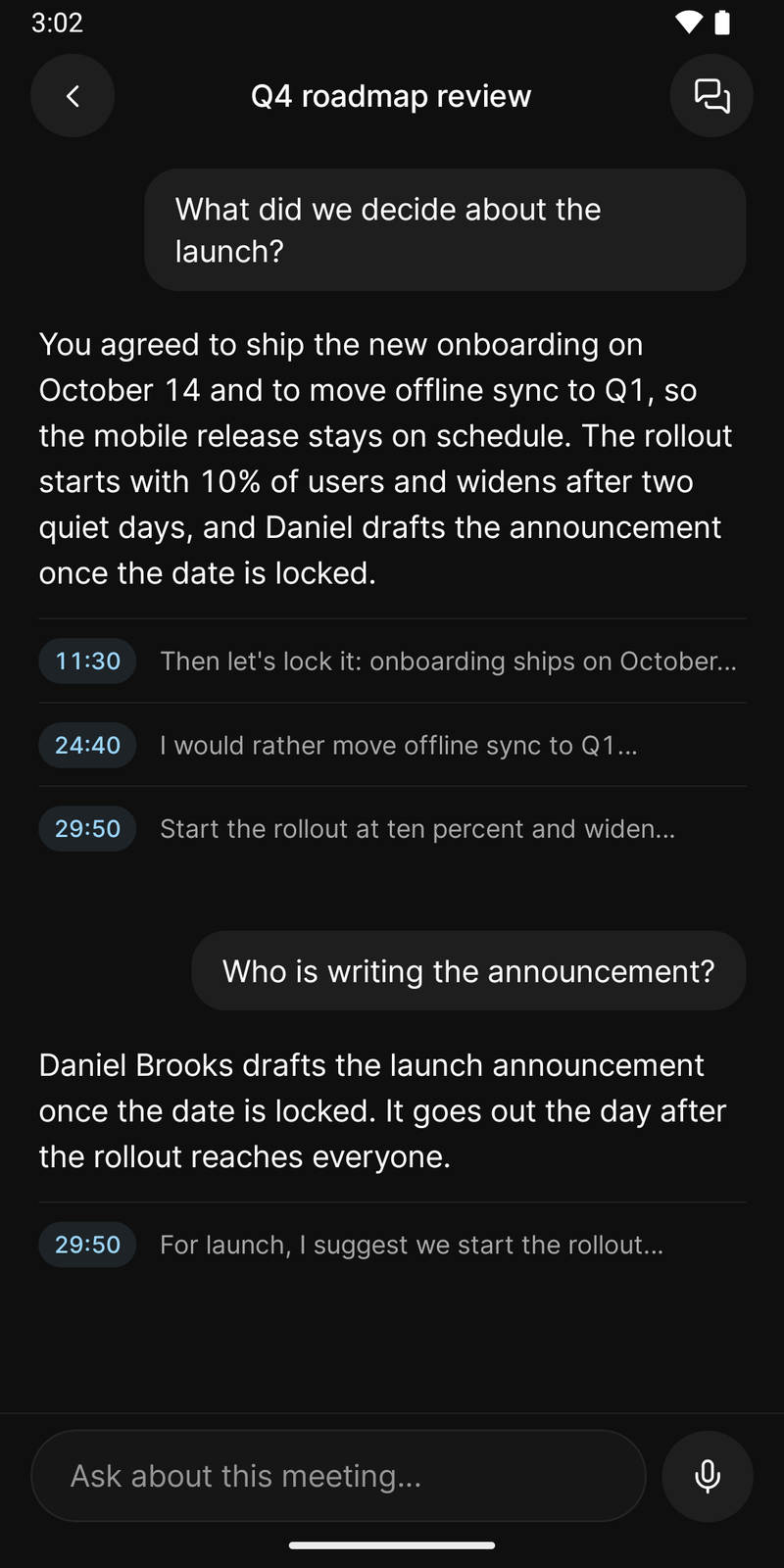
Ask what was agreed, on Android
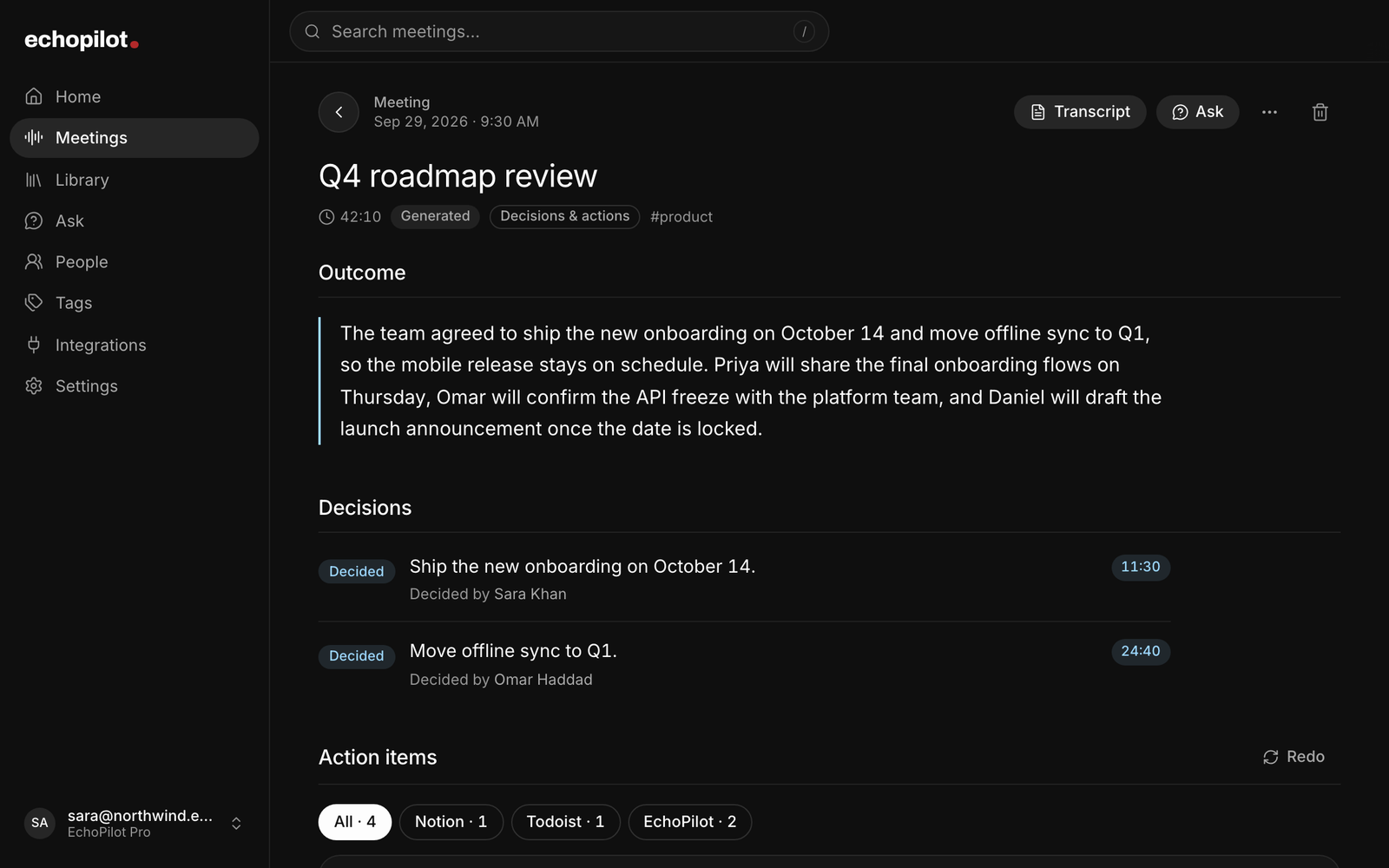
The minutes, written when the call ends
Record Google Meet calls, in depth.
Most Google Meet calls happen in a browser tab, which is exactly where notes get lost between one call and the next. EchoPilot records the call on your computer instead: the desktop app for Mac and Windows captures your microphone and the audio the tab plays, and when you stop, it writes the Meeting Minutes, a searchable transcript and the follow-ups.
How to record a Google Meet call with EchoPilot
- Install EchoPilot for Mac or Windows and sign in. On a Mac, allow the microphone and Screen Recording when macOS asks: that is how macOS passes on the audio your Mac plays, and EchoPilot records audio only.
- Open the Meet call in your browser as usual.
- Press Record in the EchoPilot panel, in the menu bar on a Mac or the system tray on Windows. EchoPilot can also notice that a call has started and offer to record it with one click.
- Let people know you are recording when the call begins.
- Press Stop when you leave. The minutes, the transcript and the action cards appear on your phone, your computer and the web when they are ready.
A tab reloaded halfway through, or a connection that drops for a moment, is still one recording. EchoPilot keeps recording through it, and when a call seems to have ended it asks whether to carry on rather than stopping at the first silence.
What gets recorded
Audio only: your microphone, and everything your computer plays, which is where the other participants’ voices come from. EchoPilot does not record video, the screen, the Meet chat or captions, and it does not read what is on the page. Mute either source in the panel whenever you need to; muting in EchoPilot does not mute you in Meet.
Meet’s recording and EchoPilot
Google Meet can record meetings itself on some Google Workspace plans and on Google One plans with 2 TB of storage or more, when the host allows it. Personal accounts without one of those plans cannot record in Meet.
EchoPilot does not use Meet’s recording, so it works the same whatever plan the meeting’s Google account is on, and what you get is the meeting written up rather than a video. The meeting’s rules still apply: tell the people on the call, follow the host’s and your organization’s policies, and check the law where you are. The recording consent guide covers the basics.
Follow-ups in Google apps
Each commitment from the call becomes an action card you approve before anything is created. With a Google account connected, an agreed meeting or deadline goes to Google Calendar at the time that was said, a task goes to Google Tasks with its due date, and a note can be saved to Google Drive. The rest of the destinations, from Todoist to Slack, are on the integrations page.
After the call
The minutes take the shape of the meeting: decisions and actions, interview questions and answers, check-in blockers or brainstorm ideas, each point linked to the moment it came from. Ask answers questions about the call and shows its sources, and the transcript plays from any line.
Coming next
A companion extension for Chrome and Firefox is in development, working with the desktop app. Until it ships, you start each recording yourself, from the panel or the prompt.
Other meeting apps
The desktop app records Zoom, Microsoft Teams and any other call your computer plays. For a meeting in a room, use your phone: see recording in-person meetings.
What you need
A Mac with macOS 13 or later (the call audio needs macOS 14.2 or later), or a PC with 64-bit Windows 10 or later, and an EchoPilot account. A recorded call uses your meeting minutes like any other recording, on Free and Pro; the limits are on the pricing page.
Questions worth answering.
Do I need to be the host to record a call with EchoPilot?
Does EchoPilot record the video or the screen?
Can EchoPilot record a video call on my phone?
Can EchoPilot start recording a call by itself?
Does a bot join my meeting?
Your next meeting can end with the work already drafted.
Install EchoPilot on the phone or the computer you already work on, record the next conversation you would otherwise try to remember, and read the minutes, the transcript and the drafted actions it gives you back.
Questions? support@echopilotapp.com