Record Teams meetings. No bot in the call.
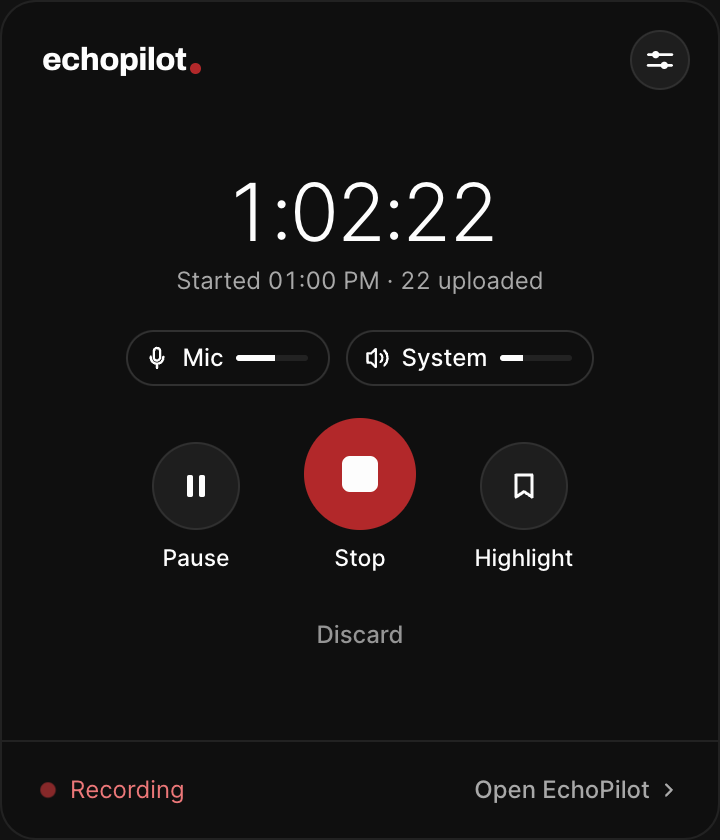
EchoPilot for Mac and Windows records your microphone and the Teams audio your computer plays. When you stop, the minutes are written, and the follow-ups can go to Microsoft To Do, Outlook or a Teams chat once you approve them.
- Your microphone and the call audio
- No bot in the meeting
- Follow-ups to Microsoft apps
The whole call
Your microphone and the Teams audio your computer plays, recorded together, in the Teams app or in the browser.
No bot to add
Nothing joins the meeting and nobody has to set anything up for you. EchoPilot records on your own computer.
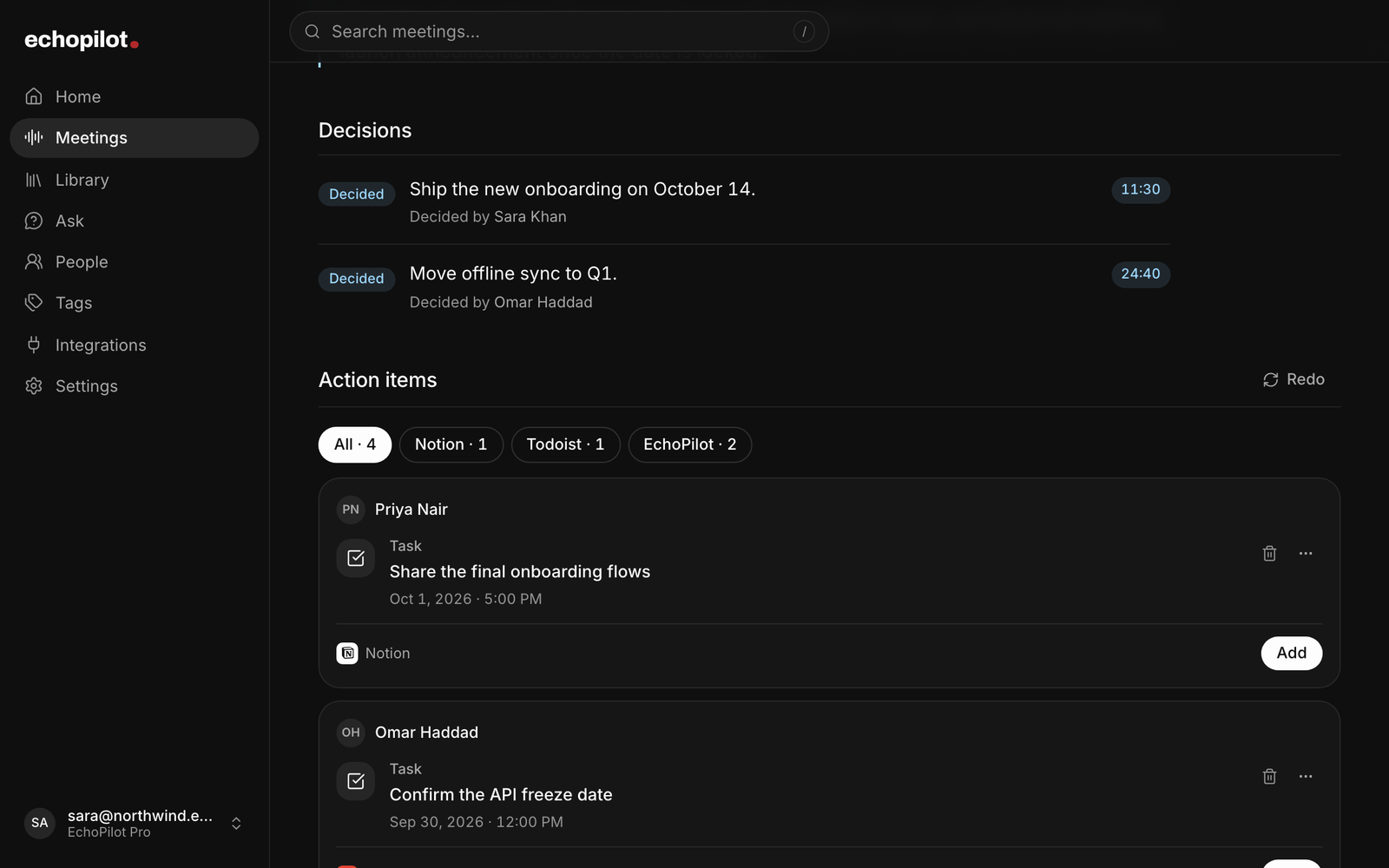
Decisions and owners
The minutes say what was decided, by whom and when, and list who owes what, each point linked to its moment.
Back into Microsoft 365
Approve a card and the task goes to Microsoft To Do, the event to Outlook Calendar, or a message to a Teams chat.
What it looks like
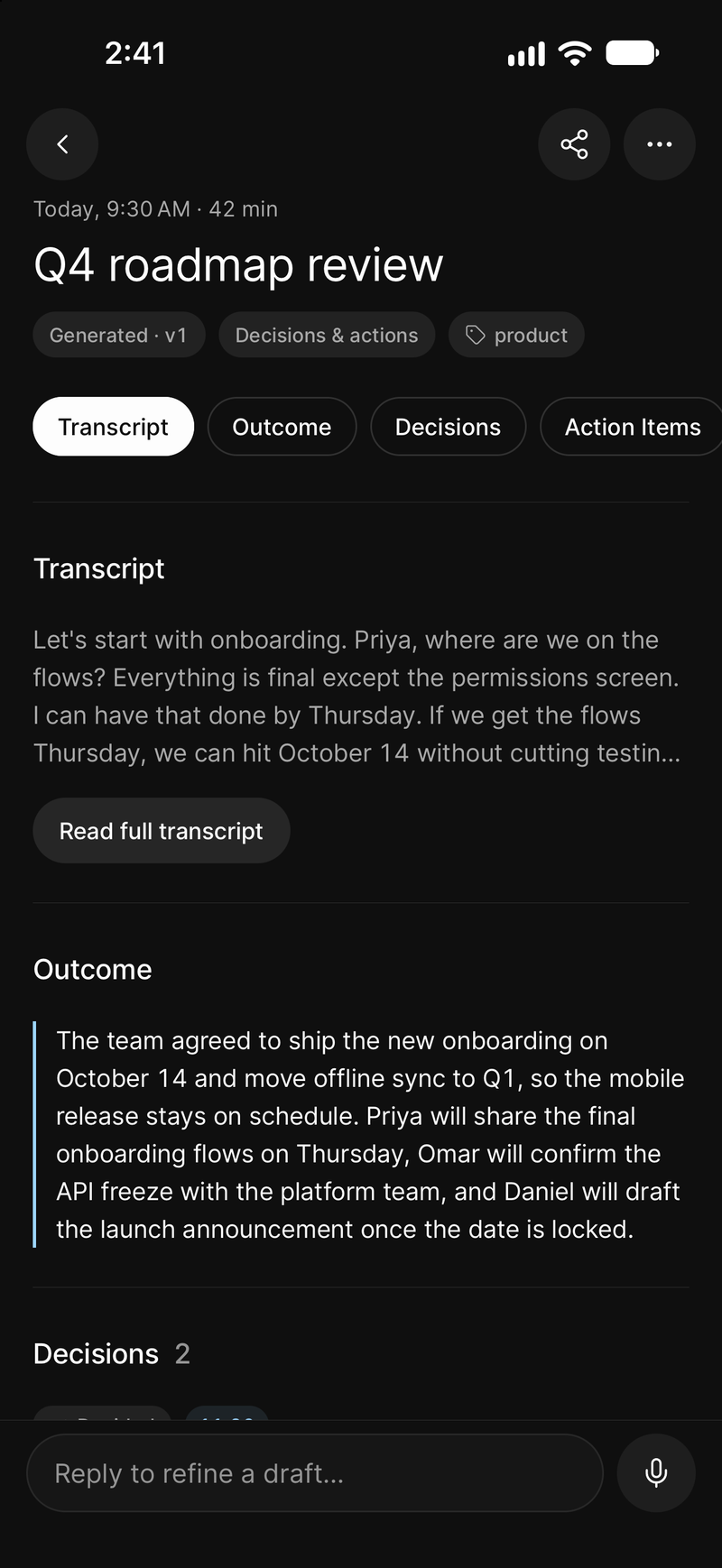
The same minutes, on your phone
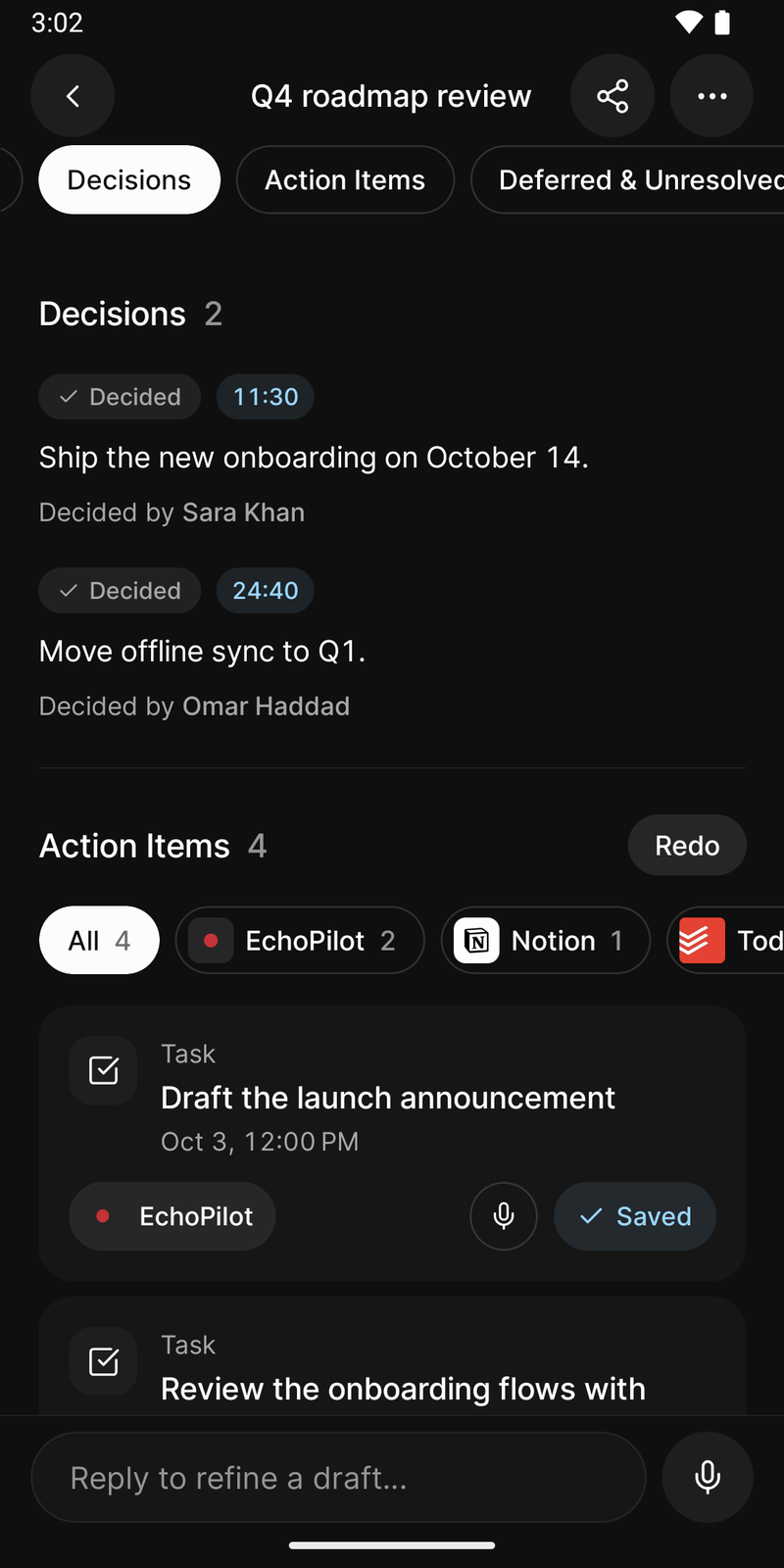
And on Android
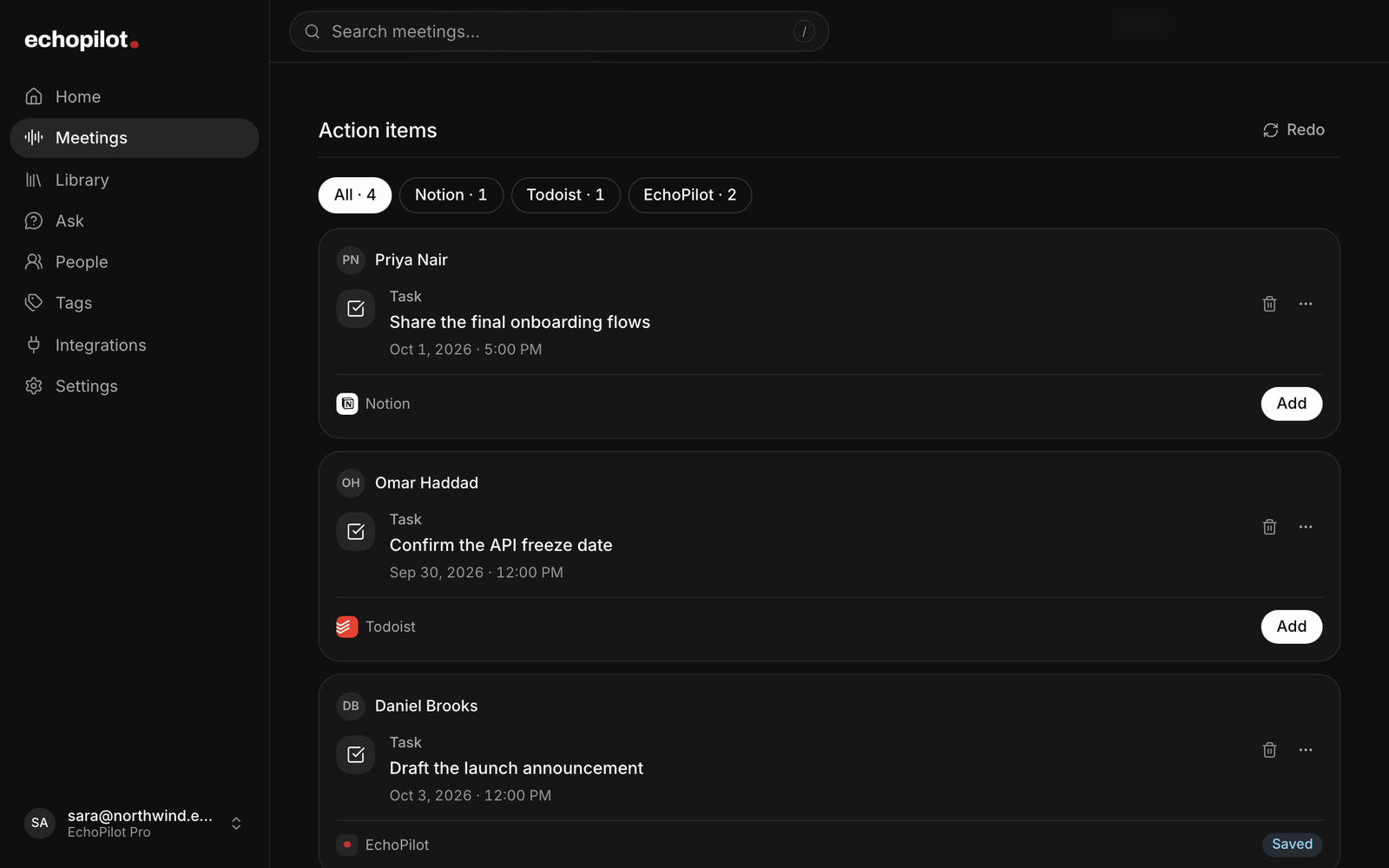
Every commitment as a card, sent only when you approve it
Record Microsoft Teams meetings, in depth.
Teams meetings end with decisions, owners and dates, and someone has to write them down. EchoPilot does it for you. The desktop app for Mac and Windows records your microphone and the audio of the call, and when you stop it writes the Meeting Minutes, a searchable transcript and a card for every commitment.
How to record a Teams meeting with EchoPilot
- Install EchoPilot for Mac or Windows and sign in. On a Mac, allow the microphone and Screen Recording when macOS asks; that permission is how macOS hands over the audio your Mac plays, and EchoPilot keeps audio only.
- Join the meeting in the Teams app or in Teams on the web, whichever you use.
- Press Record in the EchoPilot panel, from the menu bar on a Mac or the system tray on Windows. When EchoPilot notices that a call has started it offers to record, and one click starts it.
- Say that you are recording at the start of the meeting.
- Press Stop when you hang up. The minutes and the action cards are ready on your phone, your computer and the web shortly after.
What gets recorded
The audio: your microphone and the sound your computer plays. EchoPilot does not record video, the screen, shared content or the meeting chat, and it does not read the meeting’s content from Teams.
You can mute either source in the panel without touching Teams. Mute your microphone in EchoPilot for a town hall you only listen to, and the speakers are still recorded while your own mic stays out of it.
Teams’ recording and EchoPilot
Teams has recording and transcription of its own. Whether you can use them depends on your organization: the meeting organizer’s recording policy, your licence and what your IT team has turned on, and people from another organization cannot start a recording at all.
EchoPilot records on your computer, so it does not rely on any of those settings, and the minutes, the transcript and the cards live in your own EchoPilot account on your phone, computer and the web. It does not change who may record a meeting, though. Tell the people on the call, follow your organization’s policy, and check the law where you are; the recording consent guide covers the basics.
The follow-up, in Microsoft 365
Every commitment in the meeting becomes an action card with a destination already chosen, and nothing is created until you approve it. With a Microsoft account connected:
- tasks go to Microsoft To Do, with the due date that was agreed;
- meetings and deadlines go to Outlook Calendar at the time that was said;
- notes can be filed in OneNote or OneDrive, drafted as an Outlook email, or posted as a message to a Teams chat you pick.
Your organization may need to approve the Microsoft connection before it works. Every other destination, from Todoist to Notion, is on the integrations page.
After the call
The minutes follow the kind of meeting it was: decisions and actions for a planning call, blockers for a check-in, questions and answers for an interview. Each decision shows who made it and when. The transcript plays from any line and can be searched, and Ask answers questions about the call with the moments its answer came from.
Other meeting apps
The same desktop app records Zoom, Google Meet, Webex, Slack huddles and anything else your computer plays. For a meeting in a room, put your phone on the table instead: see recording in-person meetings.
What you need
A Mac with macOS 13 or later (the call audio needs macOS 14.2 or later), or a PC with 64-bit Windows 10 or later, and an EchoPilot account. A call recorded on a computer uses your meeting minutes like any other recording, on Free and Pro; the limits are on the pricing page.
Questions worth answering.
Do I need to be the host to record a call with EchoPilot?
Does EchoPilot record the video or the screen?
Can EchoPilot start recording a call by itself?
Which apps can EchoPilot send actions to?
Does a bot join my meeting?
Your next meeting can end with the work already drafted.
Install EchoPilot on the phone or the computer you already work on, record the next conversation you would otherwise try to remember, and read the minutes, the transcript and the drafted actions it gives you back.
Questions? support@echopilotapp.com