Record Zoom meetings. No bot in the call.
EchoPilot for Mac and Windows records your microphone and the Zoom audio your computer plays, so everyone on the call is in the recording. When you stop, the minutes, the transcript and the follow-ups are on your phone and the web.
- Your microphone and the call audio
- No bot in the meeting
- Any Zoom plan
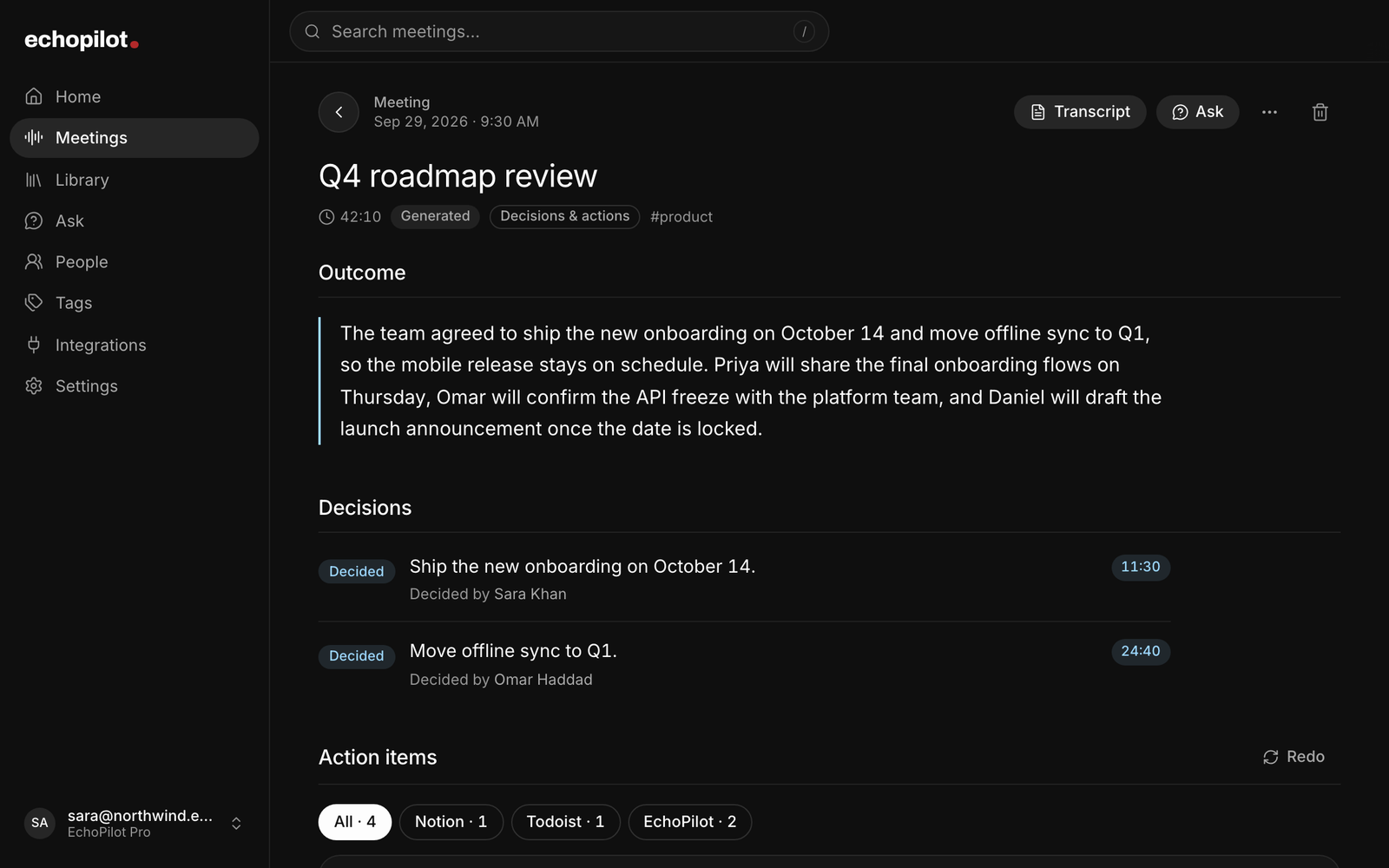
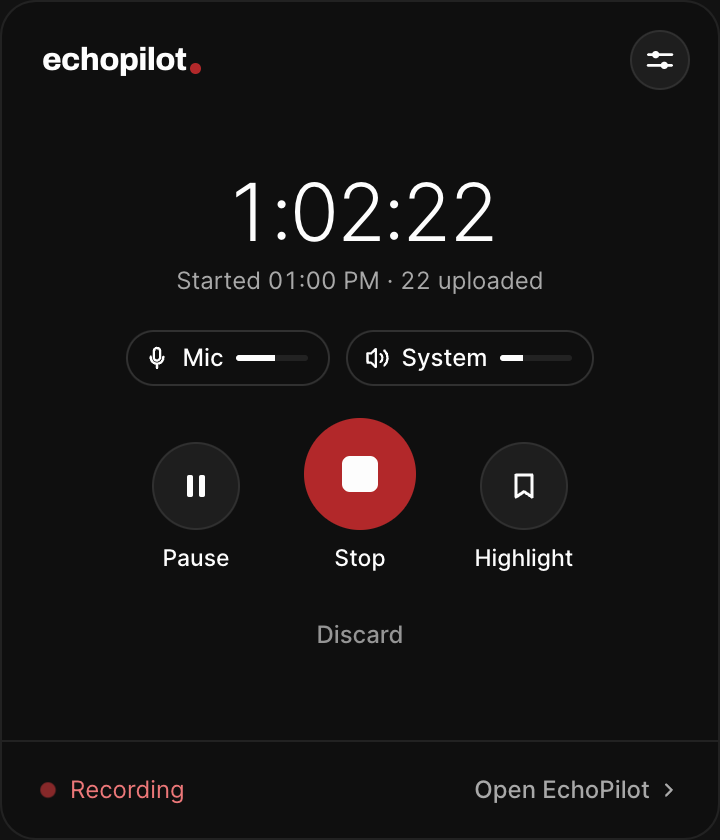
Both sides of the call
Your microphone and the Zoom audio your computer plays, captured together, so the other people are recorded at source rather than through a speaker.
Nothing to invite
No notetaker to add to the meeting and no bot waiting to be admitted. EchoPilot records on your computer, like a recorder on the table.
Minutes, not a video file
The outcome, the decisions, the action items and a searchable transcript are ready when you stop.
The follow-up, drafted
Each commitment becomes a card for Todoist, Notion, Slack, your calendar and more. Nothing is sent until you approve it.
What it looks like
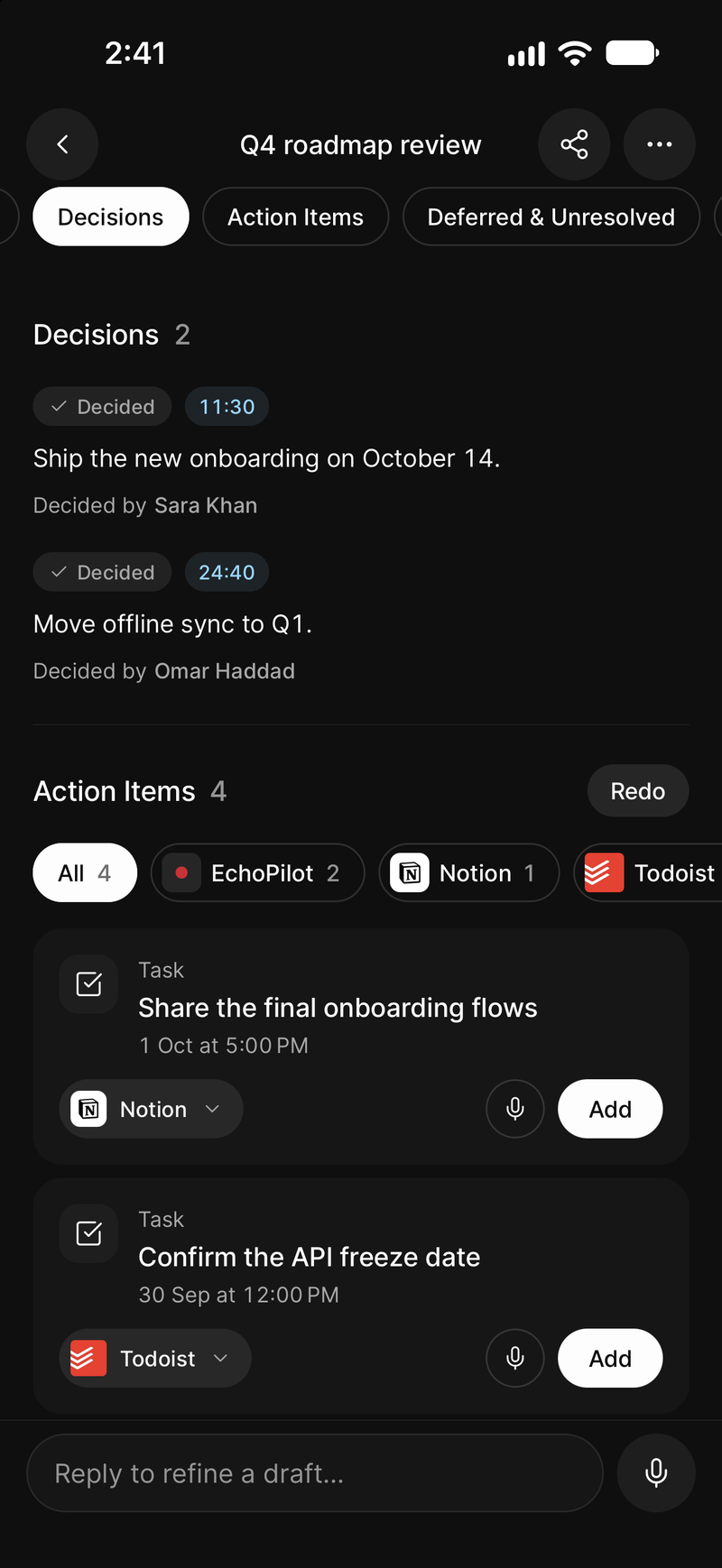
Decisions and action items, on your phone
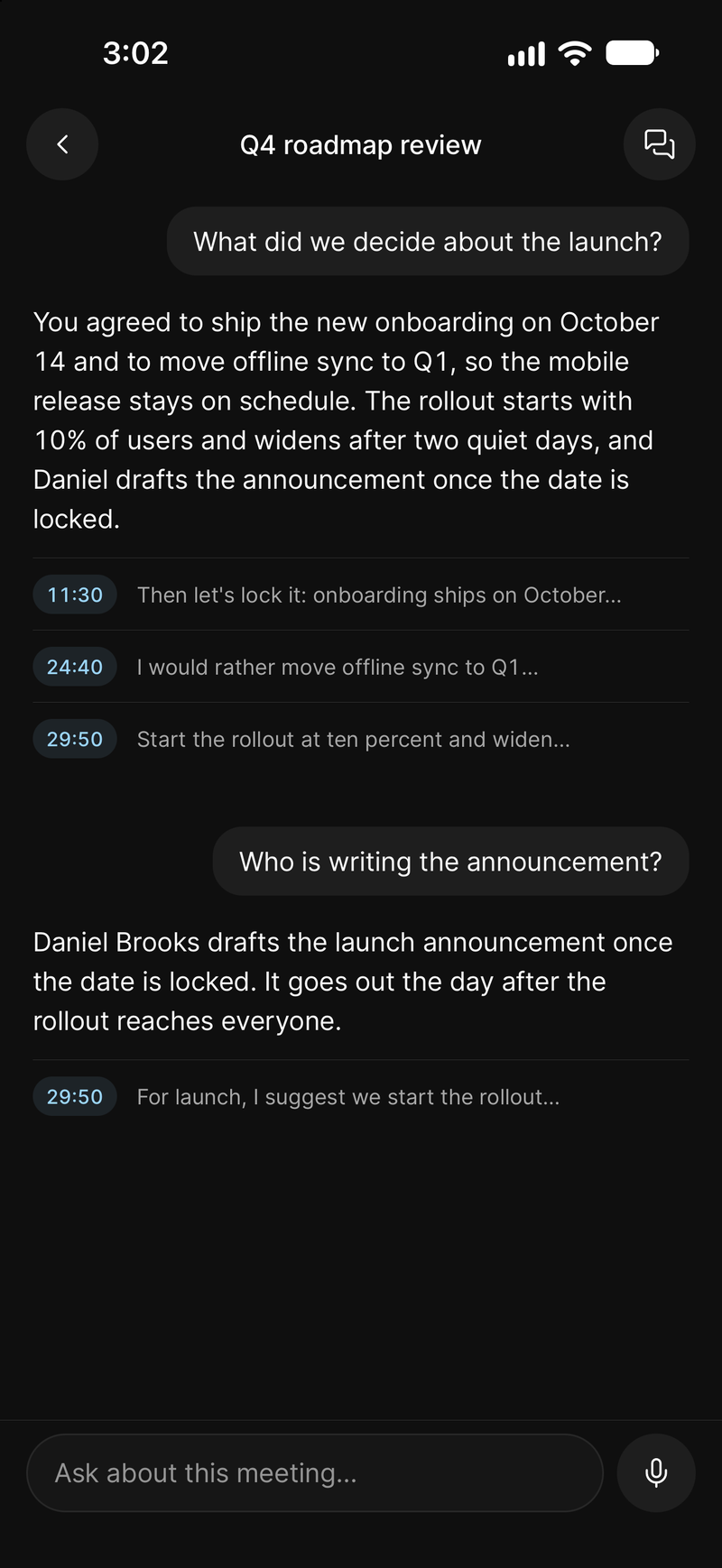
Ask the call a question and get the moment back
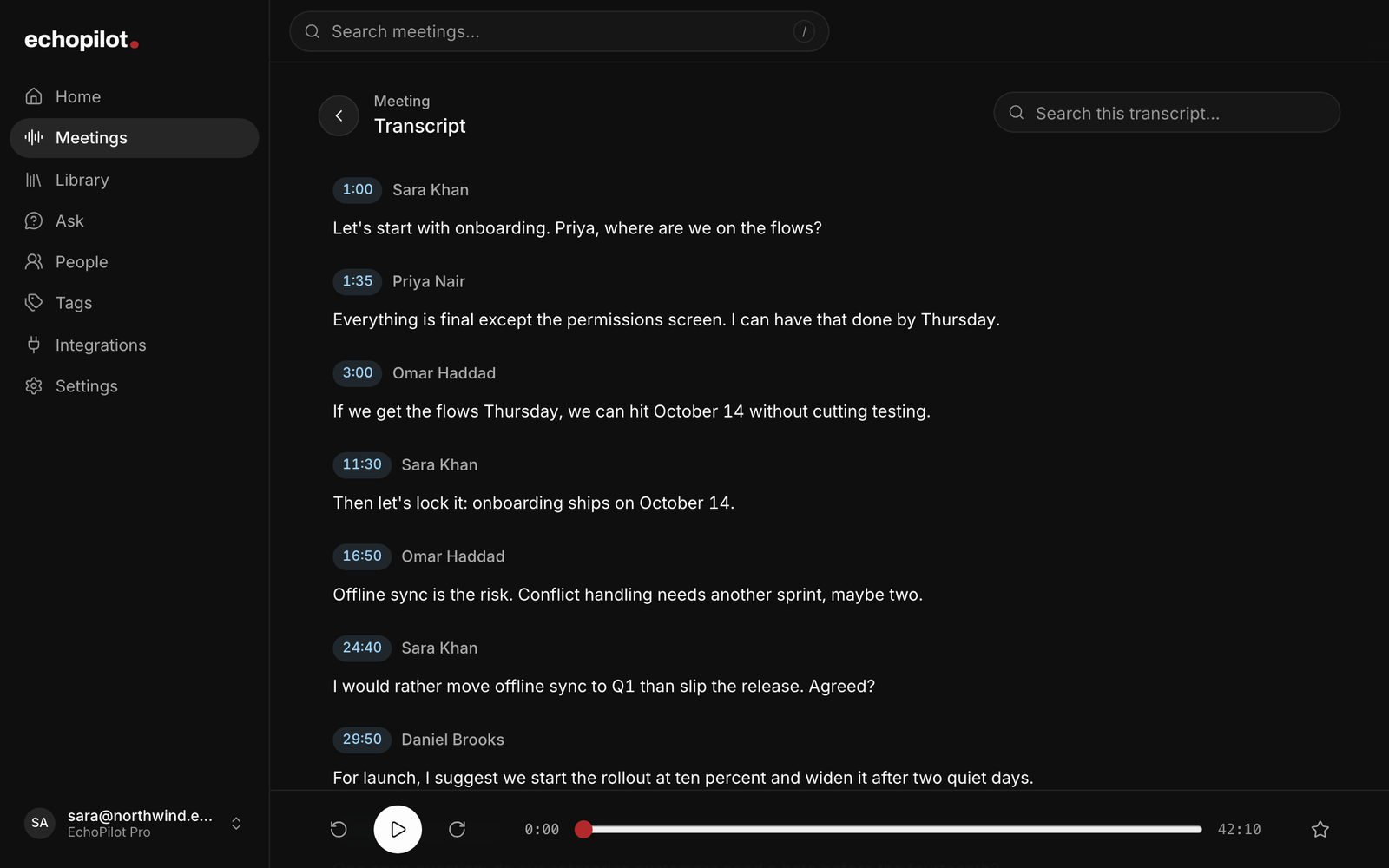
The call, word for word, with each line tied to the audio
Record Zoom meetings, in depth.
Zoom calls are where a lot of decisions get made and a lot of follow-ups get lost. EchoPilot records them on the computer you take them on: the desktop app for Mac and Windows captures your microphone and the audio of the call, and when you stop, it writes the Meeting Minutes, a searchable transcript and the action items for you.
It works in the Zoom app and in Zoom in a browser, because it records what your computer plays rather than connecting to Zoom.
How to record a Zoom meeting with EchoPilot
- Install EchoPilot for Mac or Windows and sign in with your EchoPilot account. On a Mac, allow the microphone and Screen Recording when macOS asks: macOS delivers the audio your Mac plays through that permission, and EchoPilot records audio only.
- Join the Zoom call the way you always do.
- Press Record in the EchoPilot panel, in the menu bar on a Mac or the system tray on Windows. If EchoPilot notices that a call has started it offers to record, and one click starts it.
- Tell the people on the call that you are recording, the same as you would with any recorder.
- Press Stop when the call ends. The minutes, the transcript and the action cards appear on your phone, on your computer and in the web app as soon as they are ready.
The step-by-step guide for a Mac, including the permission screens, is how to record meeting audio on a Mac.
What gets recorded
Audio only: your microphone, and the sound your computer plays, which is where the other participants’ voices come from. EchoPilot does not record video, the screen, shared slides or the Zoom chat. The minutes, the transcript and the answers are built from what was said.
Each source has its own mute in the panel. Muting your microphone in EchoPilot keeps you out of the recording without muting you in Zoom, which is useful for a webinar or an online class you only listen to.
Zoom’s recording and EchoPilot
Zoom has its own recording. Recording to your computer is available on free and paid Zoom accounts, a participant needs the host’s permission to use it, and cloud recording is part of paid Zoom plans. What you get from it is a video file.
EchoPilot gives you the meeting written up instead: what was decided and by whom, who owes what, the questions left open, and a transcript you can search and ask questions of. It does not depend on which Zoom plan the meeting is on, and it is happy to run alongside Zoom’s own recording if the host is making one.
If you are not the host
EchoPilot records on your own computer, so it works the same whether you are hosting the call or joining it. It does not change the rules of the meeting: say that you are recording, follow the host’s and your organization’s policies, and check what the law requires where you and the other people are. The recording consent guide covers the basics.
After the call
The Meeting Minutes arrive in the format that fits the call: decisions and actions for a planning meeting, questions and answers for an interview, blockers for a check-in, ideas for a brainstorm. Each point links back to the moment it came from.
The transcript is searchable and plays from any line, with speaker turns you can name on Pro. Ask answers questions about the call and shows the moments its answer came from. And every commitment becomes an action card with its destination chosen, waiting for your approval.
Long calls and bad connections
A Pro recording runs up to four hours. EchoPilot writes the audio to disk in segments as the call goes, so a crash or a dropped connection does not lose the meeting, and a recording made offline uploads by itself when you are back online. The meeting recorder page covers what happens when something is interrupted.
Other meeting apps
The desktop app records whatever your computer plays, so the same steps work for Microsoft Teams, Google Meet, Webex, Slack huddles and any other call. For a meeting in a room, use the phone app instead: see recording in-person meetings.
What you need
A Mac with macOS 13 or later (the call audio needs macOS 14.2 or later), or a PC with 64-bit Windows 10 or later, and an EchoPilot account. Recording on a computer uses your meeting minutes exactly as the phone does, on Free and Pro; the limits for each plan are on the pricing page.
Questions worth answering.
Do I need to be the host to record a call with EchoPilot?
Does EchoPilot record the video or the screen?
Can EchoPilot record a video call on my phone?
Can EchoPilot start recording a call by itself?
Does a bot join my meeting?
Your next meeting can end with the work already drafted.
Install EchoPilot on the phone or the computer you already work on, record the next conversation you would otherwise try to remember, and read the minutes, the transcript and the drafted actions it gives you back.
Questions? support@echopilotapp.com