Record the call from the system tray.
EchoPilot for Windows captures your microphone and the meeting audio your PC is playing, together, on any call. No bot joins the call, and the minutes are on your phone and the web when you stop.
- Microphone and meeting audio
- No bot in the call
- Lives in the system tray
Both sides of the call
Your microphone and the audio your PC plays, so remote participants are captured at source, not through a speaker.
Nothing joins the meeting
No bot to invite and no extra device to buy. It records any call your PC can hear.
A tray icon, not a window
Start, highlight, pause and stop from the tray. No window has to stay open to keep recording.
Then it is on your phone
The minutes, the transcript and the action cards appear on every device signed into your account.
What it looks like
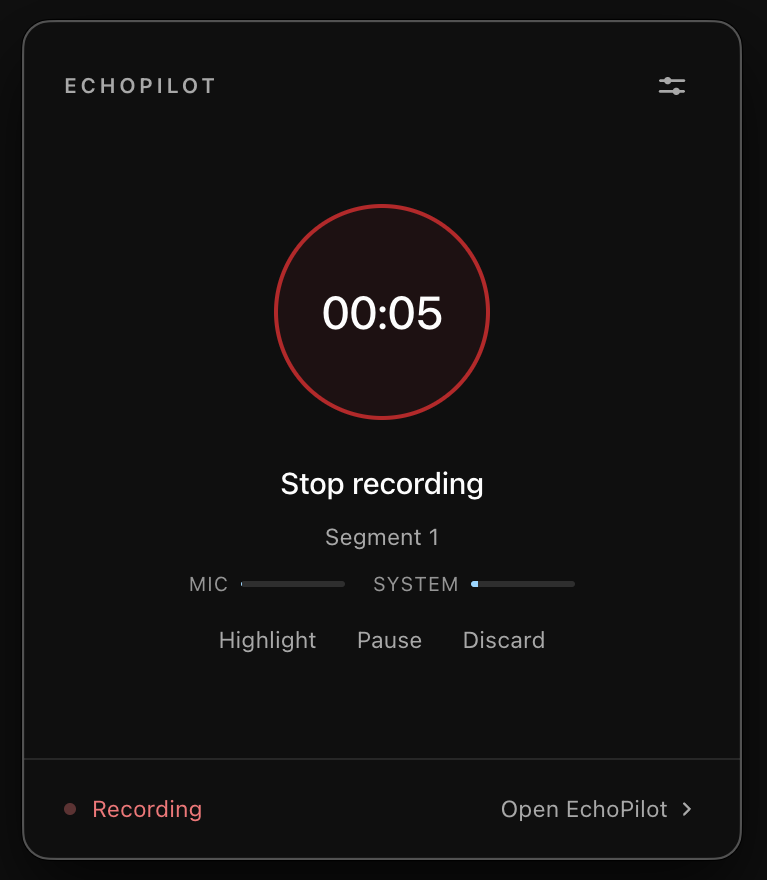
The panel, mid-recording: microphone and meeting audio together
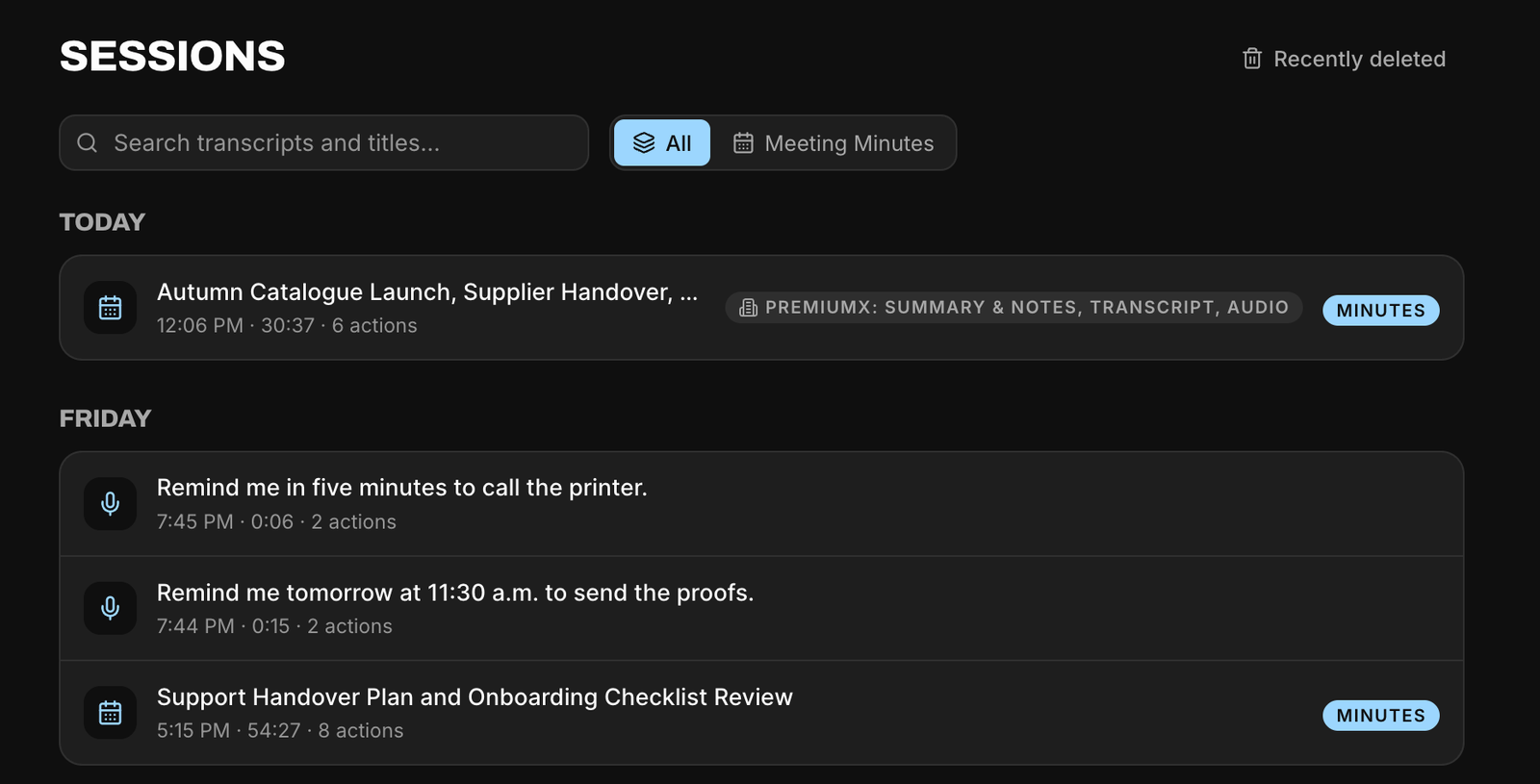
Every recording, from every device, in the web app
Windows, in depth.
Most video calls are taken on the computer in front of you, and that is where EchoPilot for Windows records them. It is the desktop half of the AI meeting assistant: the part that lives on the PC, captures the call, and hands the result to your phone and the web.
What it captures
Two streams, together: your microphone, and the audio your PC is playing. The second stream is what makes a recorded call as usable as a meeting recorded in the room, because the remote participants are captured at source rather than picked up acoustically through a laptop speaker.
Each source has its own mute button in the panel, on by default, and you can change either one before you start or in the middle of a meeting. Muting affects what EchoPilot records and nothing else: you stay unmuted in Zoom or Teams, and your computer’s volume does not change. See the desktop overview for what happens when both are muted.
Recording without a bot
A notetaker bot joins the call as a participant. It has to be invited, it appears in the list for everyone to see, a host can refuse it, and it only covers the meetings it was sent to. EchoPilot records on your own PC instead, the way a screen recording would, so it covers any call you join without inviting anything into it.
Recording only ever starts when you confirm it.
In the system tray
EchoPilot lives in the system tray and stays out of the way until a meeting starts. The recording panel shows the timer and the level of each stream; Highlight, Pause and Stop are one click away, and the tray menu carries the same controls, so nothing needs a window open. Closing the app window returns EchoPilot to the tray; only Quit ends it, and a running recording is confirmed before it does.
Meeting detection
EchoPilot can notice that you have joined a call and offer to record it, so you are prompted at the right moment rather than remembering afterwards that you meant to. It offers; it never starts on its own. Choosing Record on the prompt starts the meeting there and then, with nothing else to press. Detection reads local process and window metadata, never meeting content. We do not publish a list of conferencing applications it is guaranteed to recognise, so start the recording yourself when a meeting matters and no prompt has appeared.
Long calls, safely
Audio is written to disk in segments as the meeting runs, so a crash, a forced restart or a dropped connection costs seconds rather than the meeting. A whole call can be recorded with no connection and uploads itself later. When EchoPilot has evidence a meeting may have ended, it asks whether to continue; silence alone never stops a recording. Sleep pauses capture, and Resume picks it up again.
Highlight the moment
Press Highlight on the panel, or choose it from the tray menu, and EchoPilot marks that moment. Highlights arrive in the finished minutes exactly like the ones marked on a phone, each one a jump to that point in the recording.
Then it is everywhere else
A call recorded on your PC appears on your iPhone, on Android and in the web app like any other recording, with the same Meeting Minutes, the same searchable transcript and the same action cards waiting for approval. One account, one subscription, every device. The same app, in the menu bar, is EchoPilot for Mac.
What you need
64-bit Windows 10 or later, and an EchoPilot account. Desktop capture is on Free and Pro, and a desktop recording spends your meeting minutes exactly as a phone recording does.
The installer is on the download page. It is not yet code-signed, so Windows may show a SmartScreen notice the first time you run it; choose More info, then Run anyway.
What this does not claim
Desktop capture of microphone and meeting audio. On Mac, meeting audio needs macOS 14.2 or later. Below that the app records the microphone only and says so.
Desktop meeting detection. Detection can notice a call and offer to record. No conferencing application may be named as recognised: every adapter in desktop/src/main/detection/registry.ts is implemented-unverified.
Segmented, resumable recording. Audio is written to disk as the meeting runs, so an interruption does not lose it. A whole meeting can be recorded with no connection and uploads itself later.
Questions worth answering.
Can I record a meeting on my Mac or Windows PC?
Does a bot join my meeting?
What happens if I lose signal during a meeting?
Does one subscription cover every device?
Your next meeting can end with the work already drafted.
Install EchoPilot on the phone or the computer you already work on, record the next conversation you would otherwise try to remember, and read the minutes, the transcript and the drafted actions it gives you back.
Questions? support@echopilotapp.com