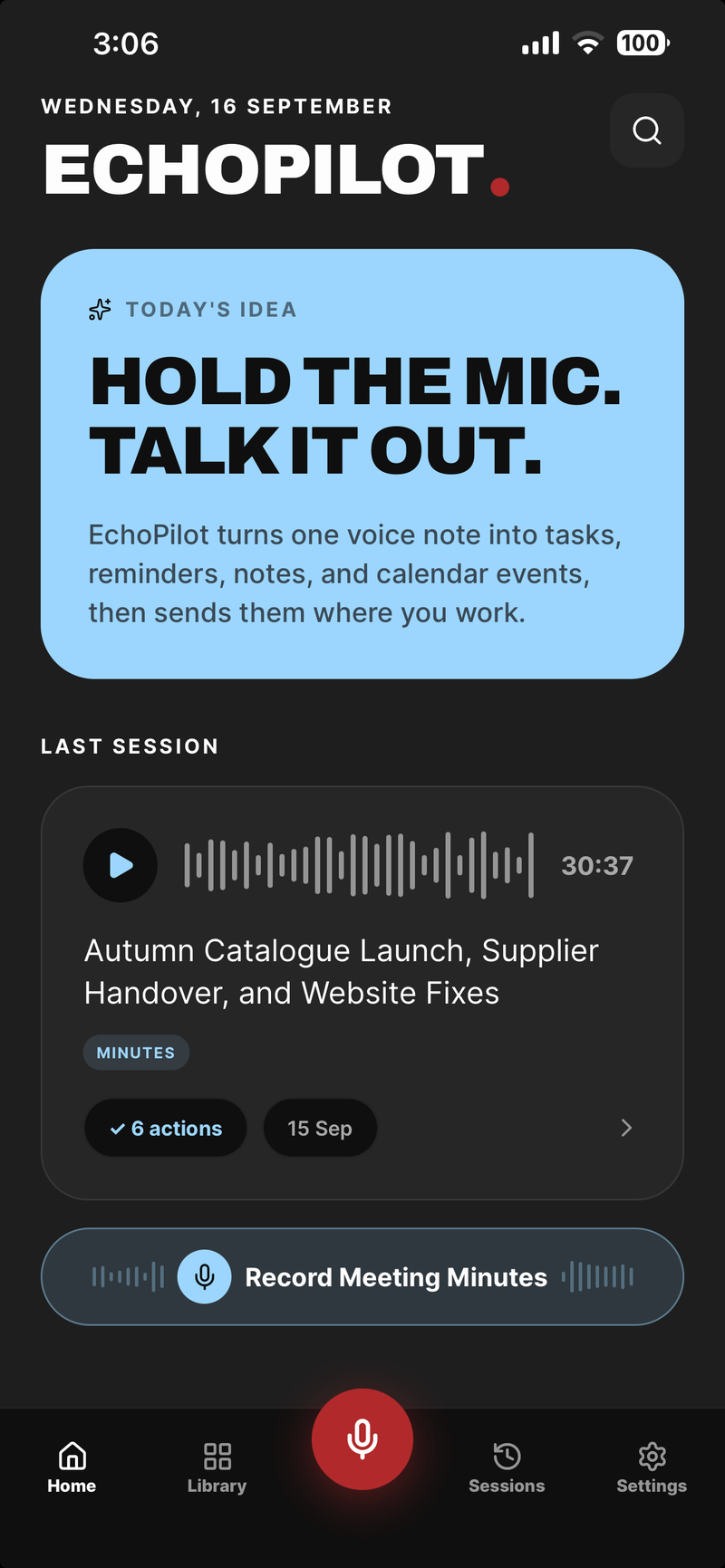
An iPhone is a good meeting recorder: it is already in the room, it has capable microphones, and it keeps recording with the screen locked. What turns a recording into something useful is what happens afterwards. This guide uses EchoPilot for iPhone, which records the meeting and then writes the minutes, the transcript and the follow-up for you.
Before the meeting
- Install EchoPilot from the App Store and sign in. Free includes meeting minutes to start with; the limits are on the pricing page.
- Allow the microphone the first time you record. iOS asks once.
- Charge the phone if the meeting will be long, or plug it in on the table.
- Tell the room you will record, and ask whether everyone is comfortable with it. See the guide to recording consent.
Start the recording
Open EchoPilot and tap Record Meeting Minutes on Home. You can also hold the record button in the tab bar and choose a meeting rather than a voice note, or start from a widget, Siri, a Shortcut or the Action Button if you have set one up.
A meeting records for up to one hour on Free and up to four hours on Pro.
Put the phone in the right place
- In the middle of the table, roughly equal distance from the people speaking.
- Away from noise: not next to a laptop fan, a coffee machine or an air vent.
- Not in a pocket or bag. Fabric muffles speech more than distance does.
- Closer to quiet speakers if one person is much harder to hear than the rest.
You do not need to keep the screen on. The recording carries on in the background and with the screen locked, and the Lock Screen and Dynamic Island show it with pause and stop, so you never have to unlock the phone to check that it is still going.
During the meeting
When something important is said, press the highlight button on the recording screen. The moment is marked and appears in the finished minutes as a jump straight to it.
If a phone call comes in, the recording pauses for it and the gap is marked, so the minutes never pretend the call did not happen. If the app crashes or the battery runs out, audio is written to disk in segments as the meeting runs, so you lose seconds rather than the meeting. No signal in the room is fine too: the whole meeting records on the phone and uploads when you are back online.
When you stop
Tap stop. The meeting appears in Sessions straight away while EchoPilot transcribes it and writes it up, and a notification tells you when the minutes are ready. You get:
- Meeting Minutes with a title taken from the content, a summary, chaptered notes with timestamps, key points tied to the moment they were said, your highlights and the full transcript.
- A searchable transcript where every line plays its moment.
- An action card for every commitment, with a destination already chosen, such as Apple Reminders, Todoist or your calendar. Nothing is created until you approve the card.
The same meeting is on the web app and on any other device signed into your account.
Tips for better recordings
- Start recording before people arrive, so the first decision is not lost while you unlock the phone.
- Use one phone, in the middle, rather than one at each end of a long table; two recordings of the same meeting are harder to use than one.
- For a video call, a phone on the desk hears the other people through the laptop speaker. The Mac and Windows apps record the call’s audio directly instead.
- For the conversation after the meeting, an Apple Watch captures it in one tap.
For more on recording the room itself, including who said what and what to do when the meeting runs long, see recording in-person meetings.